Jellyfin on Apple TV: the free way to watch your library
How to watch Jellyfin on Apple TV — install Swiftly Player free, sign in with Quick Connect, and two other good clients to know about.
By Swiftly Player2 min read
Disclosure: we build Swiftly Player, one of the clients in this article. We point out where other apps do better.
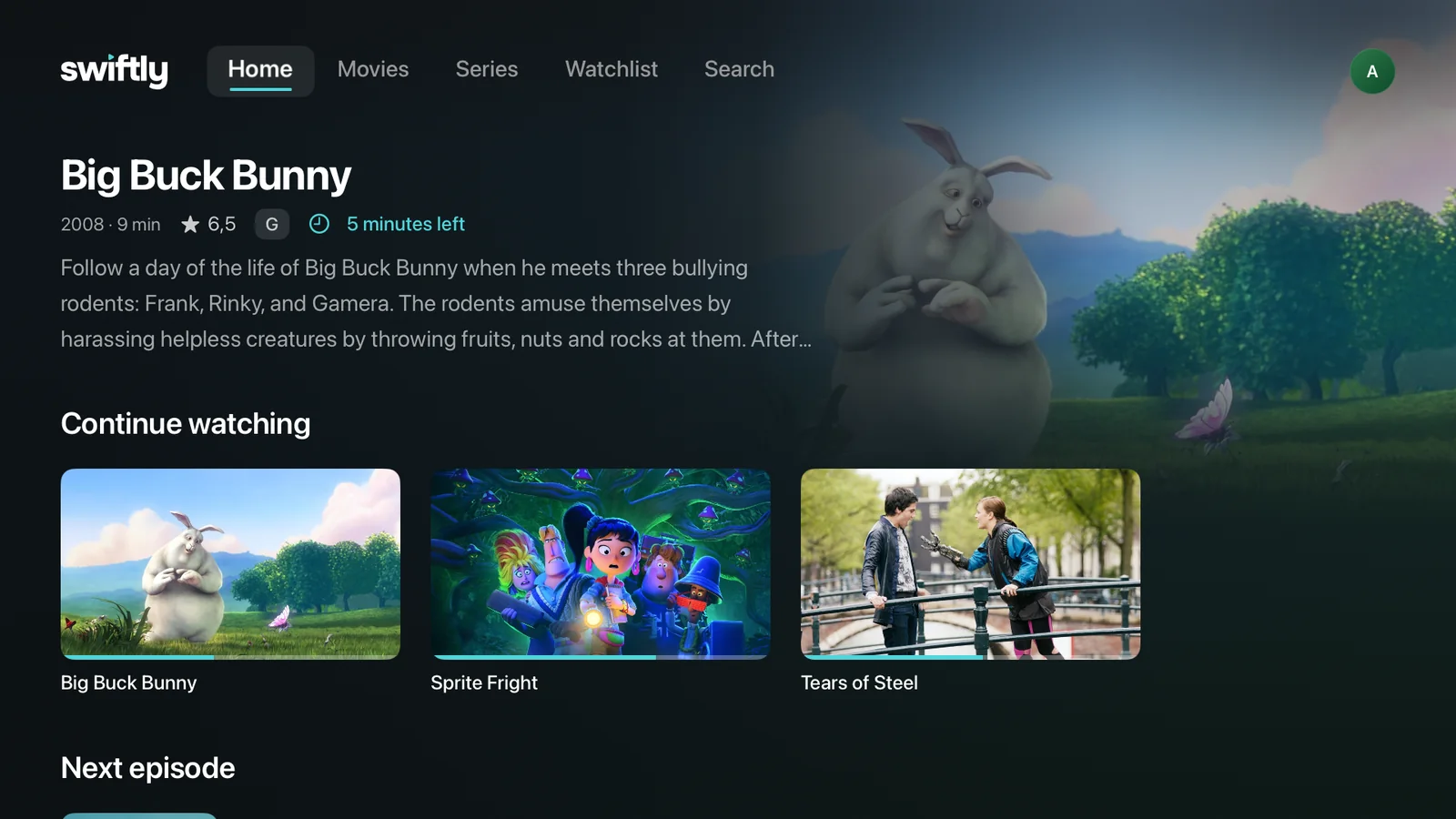
Jellyfin has no official Apple TV app, so the client is up to you. Swiftly Player is a free one: it plays your library through VLC without asking the server to transcode, and it signs in with a code instead of typing a password on the remote. The same app runs on iPhone, iPad, Mac, Windows and Linux, and on Android and Android TV in a closed test.
Set it up in 3 steps
- Install. Get Swiftly Player free from the App Store on your Apple TV.
- Connect. Enter your server address, or choose Quick Connect and approve the code from your phone or Mac.
- Watch. Pick a title from your library and press play.
What you get
- Direct Play through VLC, so the server does not transcode
- Skip Intro, Skip Recap and Skip Credits, plus automatic next episode, from Intro Skipper data
- Audio and subtitle choice remembered per series
- External subtitle files
- Multiple servers and accounts, with a separate Jellyfin account per Apple TV user
- Quick Connect sign-in, no password typed on the remote
- Requests through Seerr without leaving the app
- Resume on this device: pick up a film paused on your phone or Mac with one tap
- Free, no account with us, no tracking
- Open source under the MPL-2.0 license, source on GitHub
Other good options
- Swiftfin — open source, built by the Jellyfin project itself, free with no in-app purchases. App Store · source
- Infuse — free to install, with an optional Infuse Pro subscription for extra features. App Store
- Streamyfin — a community client built on MPV, free, with Skip Intro and downloads. App Store · source
All tvOS clients side by side: Best Jellyfin client for Apple TV. Files that will not play: MKV and Jellyfin on Apple TV.
FAQ
Does Direct Play work in 4K and HDR on Apple TV?
In most cases, yes. Swiftly asks the server for Direct Play first and plays through VLC, which handles MKV, HEVC, AV1, VP9, DTS, TrueHD and PGS subtitles on the Apple TV itself, so the server does not have to convert the file. The limit is the hardware: a very heavy 4K file can be more than an older device decodes smoothly, and whether HDR shows as HDR also depends on the screen.
Does Swiftly Player cost anything?
No. It is free, with no subscription, and no account with Swiftly itself.
Do I still need a Jellyfin account?
Yes — the same account you already use in a browser, on your own server. Swiftly does not add an account of its own. Quick Connect lets you sign in on the Apple TV with a code instead of typing a password, and Jellyfin keeps your playback position on the server, so Resume on this device works no matter where you paused.