Watch Jellyfin across devices: resume, handoff and SyncPlay
How Jellyfin stores playback position on the server, which clients offer remote control or casting, and how SyncPlay and Quick Connect work.
By Swiftly Player10 min read
Disclosure: we build Swiftly Player, one of the clients in this article. We point out where other apps do better.
TL;DR
Jellyfin saves where you stopped on the server, per user, not in the app. Any app signed in as the same user on the same server can continue from there, as long as the video is at least 300 seconds long and between 5 and 90 percent played. SyncPlay, remote control and Quick Connect are separate features, and support differs from app to app.
How Jellyfin stores playback position
While a Jellyfin app plays something, it keeps the server informed. It reports when playback starts, sends progress updates while it runs, and reports when it stops. The Jellyfin API specification calls these endpoints /Sessions/Playing, /Sessions/Playing/Progress and /Sessions/Playing/Stopped. The server saves the position as PlaybackPositionTicks in the user data of that item. The position belongs to the user account, not to the device.
The "Continue Watching" row comes from that data (/UserItems/Resume in the same specification). So a film you pause in the web browser can show up with a progress bar on your TV a minute later. Both apps only need to be signed in as the same user on the same server.
The resume thresholds
Three server settings decide whether a position is saved at all. You find them in the web dashboard under Playback, in the Resume section (jellyfin/jellyfin issue #13289). The labels come from the jellyfin-web English strings, and the defaults from ServerConfiguration.cs.
| Setting | Default | What it does |
|---|---|---|
| Minimum resume percentage | 5 | Below this, no position is saved. |
| Maximum resume percentage | 90 | Stopped after this point, the item is marked as played and the position resets. |
| Minimum resume duration | 300 seconds | Shorter videos never get a resume position. |
With the default settings, a 4-minute clip never appears in "Continue Watching". If you stop a film during the end credits, it is usually marked as watched. The issue linked above also shows a bug with the maximum set to 100 percent. Finished films then stayed in "Continue Watching". The issue is marked as fixed.
Where it goes wrong
Resume only works as well as the reports the app sends. Some apps play from a local cache, stop sending progress, or never report a stop. The server then keeps an old position. One example is from 2023. Users on the Firecore forum reported that Infuse stopped sending progress updates to Jellyfin after about nine minutes of playback. According to the thread, a later Infuse update fixed it. If resume positions look wrong, open the server log or your reverse proxy log. Look for calls to /Sessions/Playing/Progress. When they stop, you know which side stopped talking.
With a media server as the source, Infuse says it syncs watched history and the playback position of unfinished items with the server. iCloud Sync is not used in that case.
Handoff, remote control and casting
"Continuing on another device" can mean three different things in Jellyfin.
- Resume from the server position. You stop on device A, open the same item on device B and resume. This works in every app that reports progress correctly.
- Remote control. Device A tells device B what to play and then controls it. The server passes the commands on (
/Sessions/{sessionId}/Playingand/Sessions/{sessionId}/Playing/{command}in the API specification). Only sessions that announceSupportsRemoteControlcan be controlled. In the web client this is called "Play On" and "Remote Control". - Casting to Google Cast devices. The Cast device needs a receiver app. When you cast from the Jellyfin Android app or the web client, Jellyfin's own Cast receiver is used by default.

This is what each app documents at the time of writing.
| Client | Remote control / cast target | Google Cast | SyncPlay | Source |
|---|---|---|---|---|
| Jellyfin Web | Controls other sessions ("Play On") | Yes | Yes | jellyfin-web strings, jellyfin-chromecast, 10.6.0 release |
| Jellyfin for Android | Web client wrapper | Yes, in the non-libre build | Via the web client | jellyfin-android README, Android Authority |
| Jellyfin for Android TV | Not documented | Not documented | Not in the official app; request still open | issue #538 |
| Jellyfin MPV Shim | Is a cast target, controllable from the Jellyfin mobile apps and web client | No | Yes, with limits | jellyfin-mpv-shim README |
| Swiftfin (iOS, tvOS) | Not documented | Not documented | No; request still open | issue #688 |
| Findroid | Not documented | Planned | Planned | Findroid README |
| Streamyfin | Not documented; shows active server sessions | Yes | Not listed | Streamyfin README |
| Infuse | Not documented | Not documented | Not documented | Firecore support |
| Swiftly Player | Resume on this device (see below) | No | No | this blog |
"Not documented" means the README or support page does not mention it. The feature may still exist. For the official Android TV app, there is an unofficial preview fork with SyncPlay from September 2026. It is not part of the official release.
Multiple users and multiple servers
Give every person their own user account on the server. The Jellyfin user management docs describe how:
- Open the Dashboard.
- Go to Users.
- Click the
+button and create the user.
Each user has four tabs: Profile, Library Access, Parental Control and Password. The Profile tab has the option "Allow remote connections to this Jellyfin Server". Watched status, resume positions and ratings are stored per user. If everyone signs in as themselves, nobody overwrites anyone else's "Continue Watching" row.
Apps differ in how easy they make this.
- Swiftfin shows servers and users in one sign-in view since pull request #1045 (merged May 2024). It keeps several saved users, lets you switch between them, and has settings per user. Each user can get a PIN or device authentication. An open issue still asks for a faster way to switch.
- Swiftly Player keeps several servers and several accounts signed in at the same time.
The READMEs of the other apps in the table do not describe multiple accounts, so they are left out here.

SyncPlay
SyncPlay lets several people watch the same thing at the same time on different devices. It is built into Jellyfin and was the main new feature of Jellyfin 10.6.0. One person creates a group and the others join. Play, pause and seeking then apply to everyone in the group. According to the release notes, a group has no user limit, and the same user can join from several apps.
Requirements
- Everyone connects to the same Jellyfin server. For people outside your home, the server must be reachable from the internet, for example through a reverse proxy or a VPN (Android Authority).
- Each user needs SyncPlay access. The user setting "SyncPlay access" has three options: "Allow user to create and join groups", "Allow user to join groups" and "Disabled for this user" (jellyfin-web strings). New users can create and join groups by default (UserPolicy.cs).
- Everyone uses an app that supports SyncPlay.
Setting it up in the web client
- On one device, open the SyncPlay menu and choose "New group".
- On every other device, open the SyncPlay menu and choose "Join group".
- Start playback.
To stop taking part, choose "Leave group".
The SyncPlay settings in the web client include "Sync Correction" with two methods. SpeedToSync plays slightly faster to catch up. SkipToSync jumps to the expected position. If playback stutters a lot, the help text recommends turning sync correction off.
Limits
According to Android Authority, SyncPlay works in apps built on the web client, including the Android and iOS apps. It does not work in the official Android TV app, and transcoding can cause sync problems. Jellyfin MPV Shim supports SyncPlay. Its README notes one catch. If you join a group while casting to MPV Shim, the media plays but SyncPlay is not active at first. Swiftfin, Findroid and Swiftly Player do not support SyncPlay at the time of writing. So if you need SyncPlay on an Apple TV or Android TV today, none of these native TV apps has it.
Quick Connect
Quick Connect signs you in on a device without typing a password there. The Jellyfin Quick Connect documentation describes these steps.
- On the new device, choose Quick Connect on the sign-in screen. Some apps only show it after you choose manual login. The device now shows a 6-character code.
- On a device that is already signed in, open Settings > Quick Connect.
- Enter the code and confirm.
- The new device is now signed in as that user.
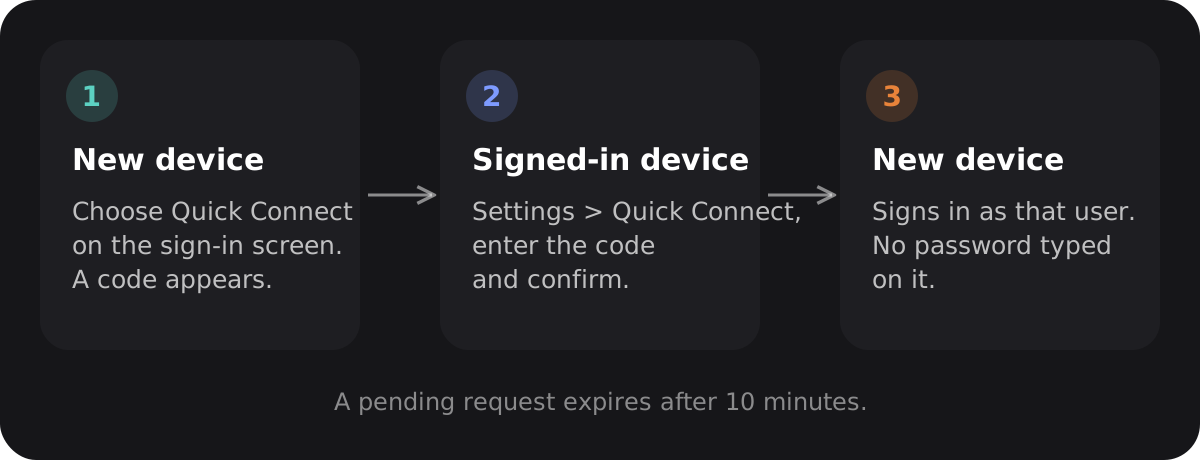
Quick Connect is on by default. To turn it off, go to Dashboard > General and clear "Enable Quick Connect on this server". In the server source, the code is 6 digits and a request expires after 10 minutes.
Not every app can do both halves. According to the documentation, these apps can sign in and also approve other devices: Jellyfin Web, Jellyfin Android, Jellyfin Media Player, Jellyfin Mobile (iOS), Jellyfin WebOS, Jellyfin Xbox and Swiftfin (iOS), among others. Jellyfin Android TV, Jellyfin Roku, JellyCon and Swiftfin (tvOS) can sign in but cannot approve. Jellyfin Kodi, Jellyfin MPV Shim and Jellyfin Vue support neither. Swiftly Player, which is not in the official list, can sign in with a code on all its platforms and approve other devices from iPhone, iPad, Mac, Windows and Linux.
FAQ
Why does an episode not show up in "Continue Watching"?
Check the resume thresholds first. With default settings, videos under 300 seconds get no position. Nothing under 5 percent played is saved. Anything stopped after 90 percent is marked as played. If that is not the cause, check whether the app sent progress reports to /Sessions/Playing/Progress.
Can I use SyncPlay with friends outside my network?
Yes, if they can reach your server and have a user account with SyncPlay access. Jellyfin has no built-in remote access service like Plex has. You set up remote access yourself, for example with a reverse proxy or a VPN.
Does Quick Connect work if the server has it disabled?
No. The option in Dashboard > General turns it off for the whole server. Apps can check the current state at /QuickConnect/Enabled in the API.
Is Swiftly Player available on Android TV?
Yes, in a closed Google Play test for Android and Android TV. You can join through swiftlyplayer.com/android; there is no public listing yet. The released version is available for iPhone, iPad, Apple TV and Mac through the App Store, and for Windows and Linux through GitHub releases.
Summary
Positions and watched status live on the server and belong to the user account. Any app that reports progress properly can continue from them. The Jellyfin web client and the apps built on it have the best support for remote control and Google Cast. Jellyfin MPV Shim works as a cast target, and Streamyfin supports Google Cast. SyncPlay needs access per user and an app that supports it. At the time of writing, that rules out the official Android TV app, Swiftfin, Findroid and Swiftly Player. Swiftly Player resumes from the server, has its own "Resume on this device" button, keeps several accounts signed in and supports Quick Connect.